





Intro
Unity installs Visual Studio by default, but VS Code should work as well.
Visual Studio (Community / Pro / Enterprise)
Installation
Disable “Add missing using directives on paste”
Make sure Visual Studio doesn’t inject random using statements when you paste code.

- Open Visual Studio 2022
- Go to Tools → Options → Text Editor → C# → Advanced
- Find Using Directives and make sure Add missing using directives on paste is unchecked
Verify behavior
- Paste code that references a type from another namespace
- Visual Studio should NOT auto-insert any new
usingstatements
Visual Studio Code
Installation
Disable automatic import insertion in VS Code
- Open Command Palett and add the following to
settings.json
{
   "csharp.completion.addMissingImports": false
}
Unity ↔ IDE Integration
Critical step
If this section is skipped, IntelliSense and the debugger will NOT work, even if Visual Studio or VS Code is installed
Visual Studio Tools for Unity Extension
Visual Studio Tools for Unity | Microsoft Learn
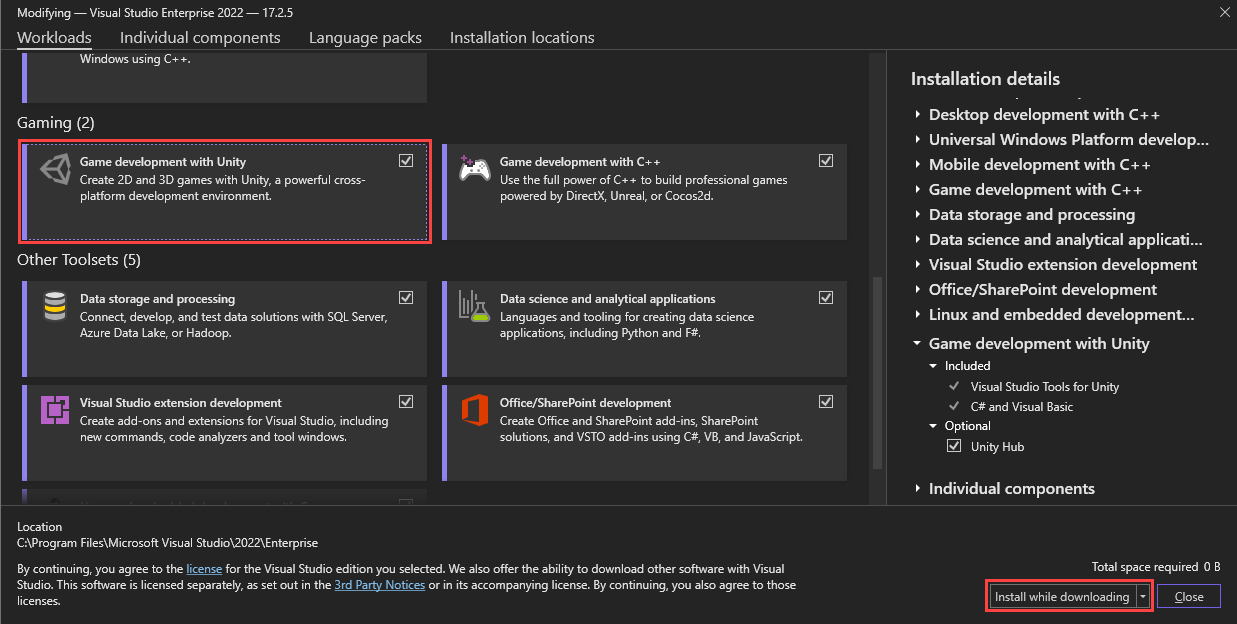
- Open the Visual Studio installer
- Select the Workloads tab, then select the
Game development with Unityworkload (Make sure Unity Hub is selected under Optional) 1
Configure Unity to use Visual Studio
How to configure Unity to link your existing Visual Studio install for scripts and debugging: 2
- Open Unity → Edit → Preferences → External Tools → click the dropdown
- If your installed Visual Studio 2022 on C: isn’t listed, click Browse… and navigate to:
C:\Program Files\Microsoft Visual Studio\2022\Community\Common7\IDE\devenv.exe- After this, Unity will use your existing VS install for scripts and debugging
Footnotes
-
https://learn.microsoft.com/en-us/visualstudio/gamedev/unity/get-started/getting-started-with-visual-studio-tools-for-unity?pivots=windows#install-visual-studio-and-unity ↩
-
https://learn.microsoft.com/en-us/visualstudio/gamedev/unity/get-started/getting-started-with-visual-studio-tools-for-unity?pivots=windows#configure-unity-to-use-visual-studio ↩